Kintone plugin · Desktop and mobile
Conditional Required Fields
Free features includedMore features with the plugin pack
Require a field
when a condition is met
Conditional Required Fields makes a field required when another field meets a condition. It checks record saves and process management actions. If a required value is missing, it blocks the save or action.
Download ZIP Pricing and purchaseShow the missing fields before saving
Require a reason only for expense records, or require a note only on table rows with a nonzero amount. If the condition field is in a table, the plugin checks each row separately.
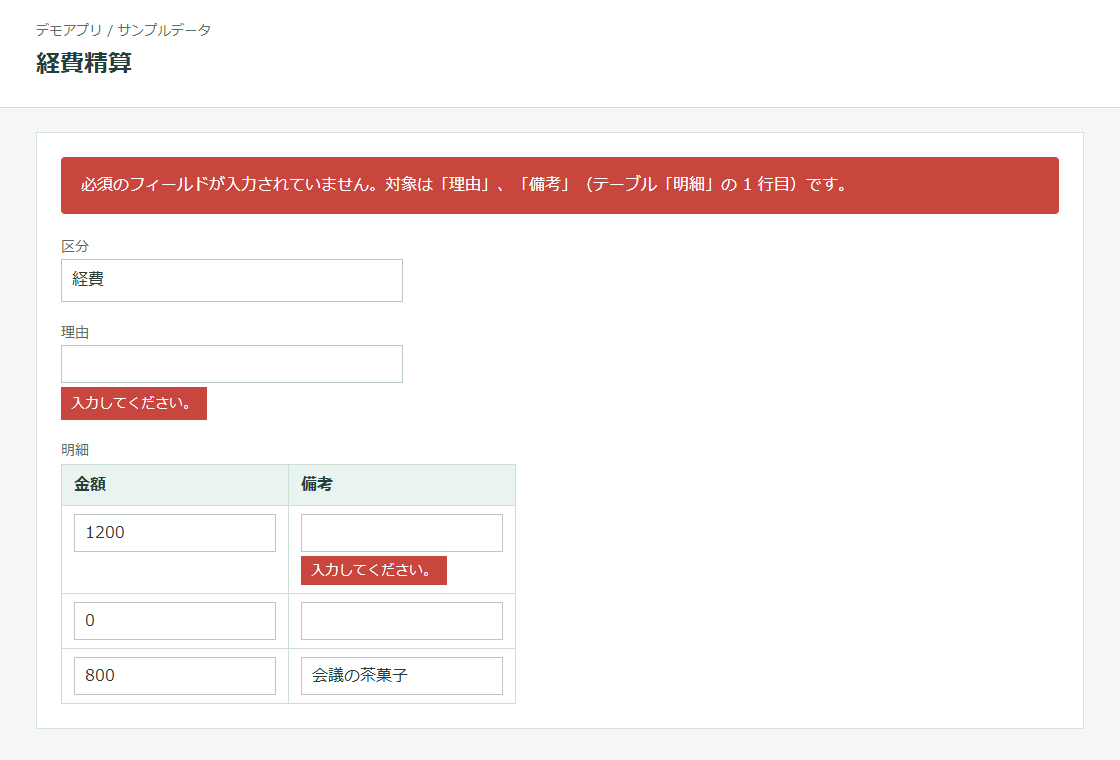
On save, errors appear below each empty field and at the top of the page. Table errors include row numbers. The pack lets you set a message for each rule; an empty message uses the default.
Check process actions too
For example, require a reason when someone runs a “Send back” action. Action checks use saved values; if a check fails, the status stays unchanged. Errors appear only at the top because the detail page cannot show field-level errors.
Attachment fields can be checked only during a process action, using saved files. Kintone’s create/edit save events cannot tell this plugin whether attachments exist, even if the record already has files.
Set up a rule
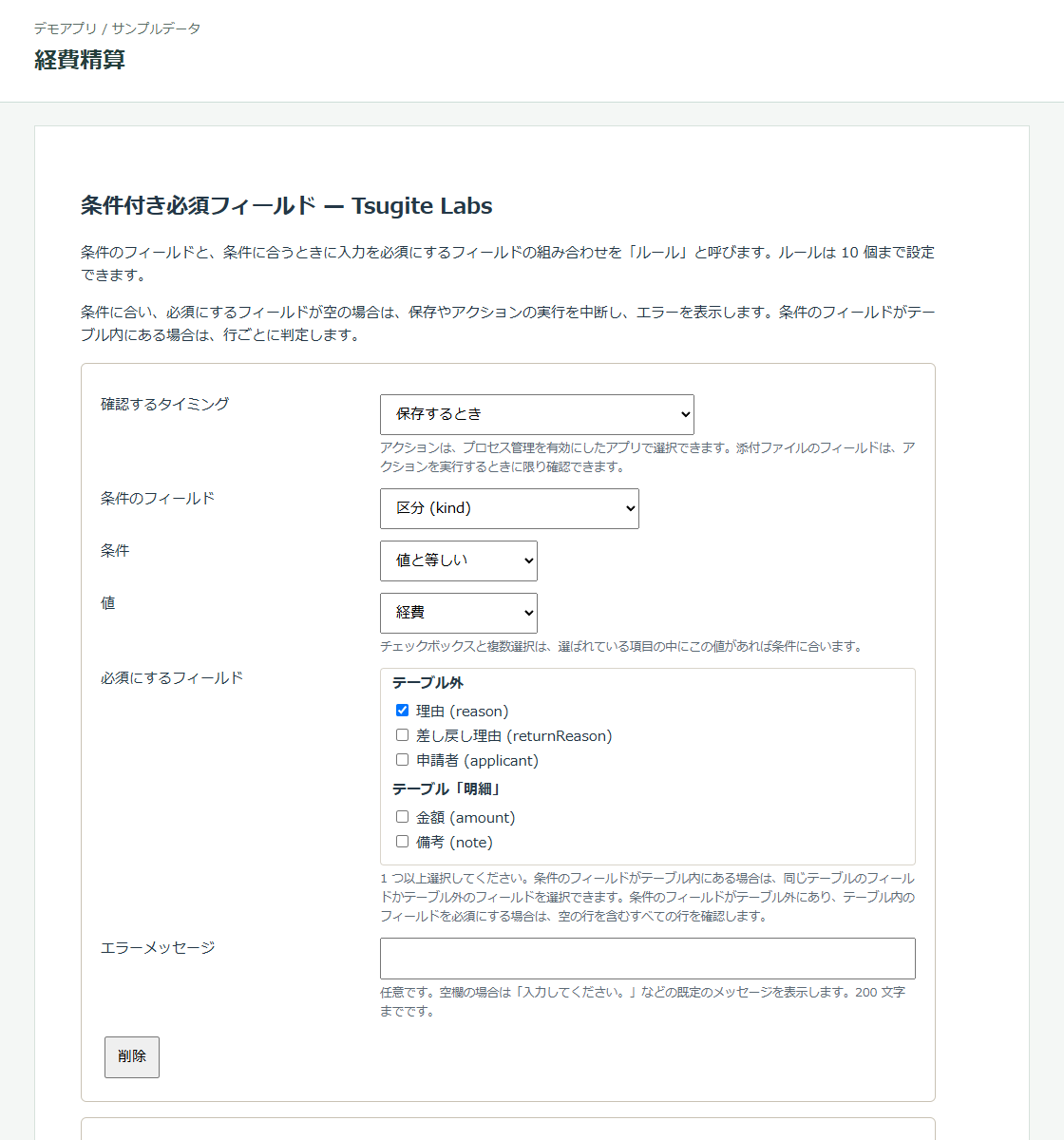
A rule combines a condition field with the fields to require when that condition is met. Configure up to ten rules per app. The first three on-save rules with default messages are free; the pack adds more rules, action checks and custom messages. Each rule can require more than one field.
- Add the plugin to your app, open its settings and click “Add rule”.
- Choose when to check: on save or on a process management action.
- Choose the condition field and an operator: equals, does not equal, is empty, is not empty, or number is not zero. For equals and does not equal, enter the value to compare.
- Select the fields to require. If needed, enter a custom error message.
- Save the settings, then click “Update App” in the app settings.
In a test app, create a record that meets a save rule’s condition and leave a required field empty. Confirm that errors appear below the field and at the top. For an action rule, run the chosen action and confirm that an error appears at the top and the status does not change.
Compare free and pack features
Included in the Tsugite Labs plugin pack: 29,800 JPY per year. Tax included, in JPY. Valid for 365 days. No automatic renewal. Card payment via Stripe on an English checkout page. Your card issuer may add a currency conversion fee. The pack includes paid features in all Tsugite Labs Kintone plugins except Excel Reports. Future plugins are included unless marked as sold separately.
Try paid features free for 30 days. No card required.
The free version and the pack use the same ZIP. To use more rules after the trial, paste your license key into the settings.
| Free | Plugin pack | |
|---|---|---|
| Rules per app | Up to 3 | Up to 10 |
| When checks run | On save | On save and process actions |
| Error messages | Default message | Custom message for each rule |
This plugin is not sold separately. Its paid features are included in the plugin pack at 29,800 JPY per year for one Kintone environment (subdomain).
Save settings that use paid features to start a 30-day trial without a key. The trial is separate for each plugin in each app, not shared across the pack. Check your required-field rules before letting a license lapse. After the trial, or after an annual license and its 14-day grace period expire:
- Only the first three on-save rules without custom messages remain active, in settings order. Legacy rules described below take priority and count toward the allowance.
- A rule with a custom message stops checking the field, so that rule no longer prevents saving an empty field. To keep the rule active for free, remove its custom message and keep it within the three on-save rules.
- Other rules stay saved and become active again when you enter a valid key.
You can also buy from the plugin settings. Your license key appears on the payment completion page. Save that page’s URL to find it again.
New installations can ignore this legacy exception: rules saved before version 0.2.0 remain active after an update without a key.
Check compatibility before installing
- Supported required fields: single-line text, multi-line text, rich text, number, link, date, time, date/time, dropdown, checkbox, multi-choice, user selection, department selection, group selection and attachments. Attachments are supported only for process action checks.
- If the condition field is outside the table, every row of the required column is checked, including the blank row Kintone adds to a new record. Delete unused rows before saving. If your condition should apply only to matching rows, use a condition field inside that table instead.
- REST API writes, CSV imports and inline list edits are not checked. Fields you cannot view are skipped.
- If you require a field that a user cannot edit, that user cannot save a record that meets the condition. Match rules to your field permissions.
- If you rename an action, select it again in the plugin settings or it will no longer be checked. Save the plugin settings again after renaming fields too.
The plugin sends no data outside your Kintone environment. Only its settings page retrieves field and process settings from the same environment. Test it with your other customizations in a test app.
Download ZIP
v0.2.3 · 38854 bytes. Download the signed ZIP.
Download ZIPInstall the plugin
Before using the plugin in production, test both record saves and process actions in a test app.
- Download the signed ZIP. Keep it zipped.
- As a Kintone Administrator, open the gear menu, then Kintone Administration, Plug-ins and Import. Select the ZIP.
- In your app settings, open Plug-ins, choose Add and select “Conditional Required Fields”.
- Open the plugin settings and configure your rules.
- Save the settings, then click “Update App” in the app settings.
In a test app, create a record that meets a save rule’s condition and leave a required field empty. Confirm that errors appear below the field and at the top. For an action rule, run the chosen action and confirm that an error appears at the top and the status does not change.
Updates are manual. Import a newer ZIP through the same administration screen used in step 2.
Languages, license and terms
These features work independently of country or region.
Japanese and English use the same ZIP and the same license key. There is no separate English purchase. The plugin’s screens follow each user’s Kintone language setting: Japanese when set to Japanese, English for every other language.
You need a Kintone plan that supports plugins. To import the ZIP, you need Kintone Administrator rights. To add and configure it in an app, you need app administration rights. Import the ZIP through Kintone Administration → Plug-ins → Import. Keep it zipped. Add the plugin to your app, save its settings and click “Update App”. To update, import the newer ZIP through the same screen. Updates are manual.
Your license key appears on a page after payment; it is not sent by email. Save that page’s URL to find your key again. You can also find a saved key in the plugin settings. If you lose both, contact us with the product name and the number on your receipt or invoice; do not buy again. Paste the key into the plugin settings for each app, save and update the app. One key covers one Kintone environment (subdomain), with no limit on apps or users. Renew from the plugin settings when needed. No automatic renewal or automatic charges. Paid features have a 14-day grace period after the annual license expires. There is no grace period after a trial ends. The plugin settings show when the trial has ended. There is no trial-end alert on record pages.
Use a Kintone plan that supports plugins. Check the features and permissions described above in a test app in your environment before production use.
The plugin sends no data outside your Kintone environment.
Terms of use (Japanese) · Privacy policy (Japanese) · Seller information and refund terms (Japanese) · Contact form (Japanese)
Contact Tsugite Labs
The contact form page is in Japanese. You can write your message in English. For a problem report, include the screen, plugin settings, field types, fictional example values and any error message. Do not send customer data or real record contents.
Contact form (Japanese)